
Going Balls APK for PC – Download Latest Version for Windows 10/11 (2026)
Going Balls is one of the most downloaded rolling ball games on mobile, with more than 100 million installs on Google Play. It is easy to pick up, but tight platforms and fast obstacles can be hard to judge on a small phone screen. Playing on a computer gives you a larger view of the track and steadier control.
This guide covers everything about Going Balls APK for PC: how to download it, how to install it on Windows 10 or 11, the system requirements, controls, features, and tips for harder levels. You can play through the official Google Play Games on PC app or through an Android emulator, and both methods are explained below.

Going Balls for PC – Quick Overview
| Detail | Information |
|---|---|
| App Name | Going Balls |
| Developer | Supersonic Studios LTD |
| Package Name | com.pronetis.ironball2 |
| Genre | Action, Platformer, Casual |
| Platform | Windows 10/11 (Google Play Games on PC or Android emulator) |
| Latest Update | September 2026 (Back to School Season) |
| Downloads | 100M+ on Google Play |
| Rating | 4.3 stars |
| Age Rating | 3+ |
| Game Mode | Single player |
| Price | Free (contains ads and in-app purchases) |
| Controls | Mouse and keyboard |
What Is Going Balls?
Going Balls is a fast-paced, physics-based ball game published by Supersonic Studios LTD. You guide a rolling ball along narrow tracks, avoid obstacles, and reach the finish line without falling off. The rules are simple, but timing and balance decide every run.
Levels are short and intense, which suits quick breaks as well as longer sessions. Along the way you collect coins and spend them on new balls and environments. The one-finger design makes it a classic hyper-casual game that anyone can start playing in seconds.
Google Play lists the game under Action, Platformer, and Casual, with single-player and offline tags and a 3+ rating. Its 4.3-star average across hundreds of thousands of reviews makes it one of the best-known titles in the rolling ball genre.
Table of Contents
What Is Going Balls APK for PC?
An APK is the installation package used for Android apps. “Going Balls APK for PC” means running the Android version of the game on a Windows computer instead of a phone. Windows cannot open APK files on its own, so you need a compatible platform.
There are two reliable ways to do this:
- Google Play Games on PC: Google’s official Windows app. Going Balls lists Windows as an available platform on Google Play.
- Android emulator: Software that creates a virtual Android device on your computer.
The official route is safer and simpler. An emulator is a useful backup if your PC does not meet the Google Play Games requirements.
Why Play Going Balls on PC?
Playing on a computer changes the experience in a few practical ways:
- Bigger display: A larger screen shows more of the track ahead, so you spot gaps, ramps, and swinging hammers earlier.
- More precise control: A mouse gives finer control over direction and speed than a thumb swipe.
- Comfortable long sessions: No cramped hands, and no phone heating up or draining its battery.
- Stable performance: A modern PC keeps frame rates steady, which matters when one delayed input causes a fall.
- Easy multitasking and recording: Switch windows freely or capture your best runs.
- Progress syncing: Google Play Games on PC lets you sync progress and earn Play Points whether you play on a computer or a mobile device.
Going Balls Mobile vs PC Version
| Feature | Mobile | PC |
|---|---|---|
| Screen Size | Small, limited track view | Large, wider view of obstacles |
| Controls | Touch swipe | Mouse click-and-drag, keyboard mapping in emulators |
| Precision | Depends on touch accuracy | Smoother, adjustable sensitivity |
| Performance | Depends on phone hardware | Consistent on modern PCs |
| Comfort | Battery drain and heat | Comfortable for long play |
| Recording | Limited | Easy screen capture |
| Portability | Play anywhere | Desk-based |
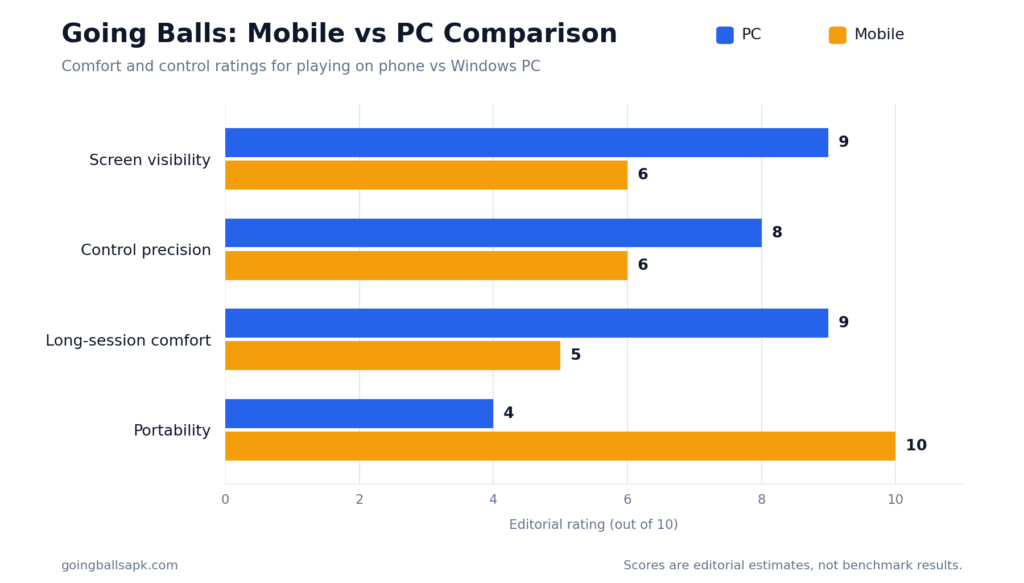
Comfort and Control Comparison (rating out of 10)
Going Balls PC System Requirements
Going Balls itself is a light, stylized casual game, so the requirements come mostly from the platform you use to run it. Google Play Games on PC has asked for at least a quad-core CPU, 8 GB of RAM, 10 GB of storage, an Intel UHD 630-class graphics chip, and Windows 10 v2004 or newer. Google can change these numbers, so check its Help Center before installing.
| Component | Requirement |
|---|---|
| Operating System | Windows 10 (v2004 or newer) or Windows 11 |
| Processor | Quad-core CPU (Intel or AMD) |
| RAM | 8 GB |
| Graphics | Intel UHD 630 or better |
| Storage | 10 GB free space, SSD recommended |
| Other | Virtualization enabled, internet connection for installation |
Going Balls PC System Requirements
Method 1: Google Play Games on PC (Recommended)
- On your Windows PC, open the Google Play Games for PC download page. Click Download, open the downloaded file, and follow the setup instructions. Google Support
- If Windows asks you to turn on Windows Hypervisor Platform, accept and restart your PC when prompted.
- Sign in with your Google account.
- Search for “Going Balls” in the game catalog or open the Going Balls PC page.
- Click Install and wait for the download to finish.
- Launch Going Balls from your Play Games library and start rolling.
Availability depends on your country or region, and some regions may ask for age verification. If Going Balls does not appear in your catalog, try Method 2. Google Support
Method 2: Using an Android Emulator
- Download a reputable Android emulator from its official website and install it.
- Open the emulator and sign in with your Google account.
- Open the Google Play Store inside the emulator, search for “Going Balls,” and click Install.
- Alternatively, use the emulator’s Install APK option and select a Going Balls APK file from a trusted source.
- Open the game from the emulator home screen and set your key mapping.
Note that other emulators may stop working while Windows Hypervisor Platform is turned on. If that happens, choose one method and stick with it.
Going Balls PC Controls
On mobile, you swipe to control the ball’s speed and direction. On a computer, the same actions are translated to your mouse or mapped keys.
| Action | Mobile | PC |
|---|---|---|
| Steer the ball | Swipe left or right | Click and drag mouse left or right |
| Control speed | Swipe control | Mouse movement or mapped keys |
| Menu navigation | Tap | Left mouse click |
| Custom controls | Not available | Key mapping in most emulators |
Exact key bindings can differ by platform and update, so check the controls overlay when you first launch the game.
Going Balls PC Controls
On mobile, you swipe to control the ball’s speed and direction. On a computer, the same actions are translated to your mouse or mapped keys.
| Action | Mobile | PC |
|---|---|---|
| Steer the ball | Swipe left or right | Click and drag mouse left or right |
| Control speed | Swipe control | Mouse movement or mapped keys |
| Menu navigation | Tap | Left mouse click |
| Custom controls | Not available | Key mapping in most emulators |
Exact key bindings can differ by platform and update, so check the controls overlay when you first launch the game.
Key Features of Going Balls on PC
Realistic Physics Engine
Every roll, acceleration, and jump follows physics-based movement. Balance is the core skill, because small mistakes at speed send you off the track. On PC, the smoother display makes this physics feel even more responsive.
Dozens of Challenging Levels
Levels take you through varied worlds, from sky-high platforms to industrial zones. Each stage has its own layout and hazards, which keeps runs from feeling repetitive. New seasonal content, such as the Back to School Season added in September 2026, adds fresh variety.
Customizable Balls
Collected coins unlock a large collection of colorful and unique balls. Customization is cosmetic, but it gives you a reason to keep collecting coins on every run.
Simple Controls, Deep Skill
The interface is built around one-finger control, and the PC version keeps that simplicity with a single mouse. It is easy to learn, but mastering speed and balance takes practice.
Free to Download
Going Balls is free to download and play. Ads and in-app purchases are part of the experience, which is covered in more detail below.
Obstacles You Will Face in Going Balls
| Obstacle | Challenge | Quick Tip |
|---|---|---|
| Swinging Hammers | Timing-based hits that knock you off the track | Wait for the swing to pass, then accelerate |
| Tricky Ramps | Launch you at uncertain angles | Enter at steady speed |
| Wrecking Balls | Large moving hazards on narrow paths | Watch the pattern before committing |
| Gaps | Missing track sections | Build enough speed before the edge |
| Narrow Paths | Little room for error | Use small, gentle movements |
Tips and Tricks to Master Going Balls on PC
- Move gently: Small mouse movements give you more control than big sweeps, especially on narrow paths.
- Learn each level: Short levels are perfect for memorizing hazard positions and timing.
- Don’t over-accelerate: Speed clears gaps but makes turns harder. Match your speed to the section ahead.
- Collect coins on the way: Coins unlock new balls and environments, so grab them when the risk is low.
- Use the full screen: Play in full-screen mode to see the entire track without distractions.
- Tune your sensitivity: If your mouse feels too fast or slow, adjust its DPI or the sensitivity in your emulator.
- Take short breaks: Precision drops when you’re tired, and fresh eyes spot patterns faster.
Ads and In-App Purchases
Going Balls is free, but it contains ads and in-app purchases. Many player reviews on Google Play mention frequent ads between levels, so expect interruptions. The developer says ads help support the game and its improvements.
If ads bother you, the in-app purchase options are the developer’s way of changing that experience. Check what a purchase includes before you buy.
Is Going Balls Safe to Play on PC?
The safest way to play is through Google Play Games on PC or the Google Play Store inside a trusted emulator. Downloading from unknown sources can expose your PC to modified or unsafe files.
The Data safety section on Google Play states that the app may collect data such as location and financial information, and may share location, app activity, and device IDs with third parties. It also states that data is not encrypted and cannot be deleted. Read that section before installing so you can decide what you are comfortable with.
Common Problems and Fixes
| Problem | Likely Cause | Fix |
|---|---|---|
| “PC doesn’t meet requirements” message | Low RAM, CPU, or virtualization off | Check requirements and enable virtualization in BIOS |
| Game lags or stutters | Background apps using resources | Close other programs and lower graphics or resolution |
| Installation stuck | Outdated Windows or interrupted download | Update Windows, restart, and reinstall |
| Controls not responding | Wrong input mapping | Reset key mapping or restart the game |
| Game missing from catalog | Regional availability | Use a supported region or an emulator |
Conclusion
Going Balls APK for PC is the best way to enjoy this rolling ball challenge on a bigger screen with steadier control. Google Play Games on PC is the simplest official route, while an Android emulator works as a backup for unsupported systems.
Check your system requirements, install through a trusted source, and learn the obstacles one level at a time. For more game guides and downloads, visit GoingBallsAPK. You can also read about the developer on the Supersonic Studios website.
Frequently Asked Questions
Can I play Going Balls on PC?
Yes. You can play it through Google Play Games on PC or an Android emulator on Windows.
Is Going Balls APK for PC free?
Yes, it is free to download and play. It contains ads and optional in-app purchases.
Do I need an emulator to play Going Balls on PC?
Not always. If your PC meets the requirements and Going Balls is available in your region, Google Play Games on PC works without a separate emulator.
Does Going Balls work on Windows 11?
Yes. Google Play Games on PC supports both Windows 10 and Windows 11.
What are the minimum requirements?
Windows 10 (v2004) or newer, a quad-core CPU, 8 GB of RAM, an Intel UHD 630-class GPU or better, and about 10 GB of storage. Check Google’s Help Center for current numbers.
Can I play Going Balls offline?
Google Play tags it as an offline game, but ads and purchases may need an internet connection.
Is my progress saved on PC?
Sign in with your Google account. Whether progress syncs across devices depends on the game’s own save support, so test it after installing.